Photo cleanup guide
How to delete iPhone screenshots without losing the ones you need
Clear screenshot clutter on iPhone with a safe review workflow—keep receipts and boarding passes, delete the rest, and free storage without wiping your camera roll.
By Pikondo team · Updated September 4, 2026
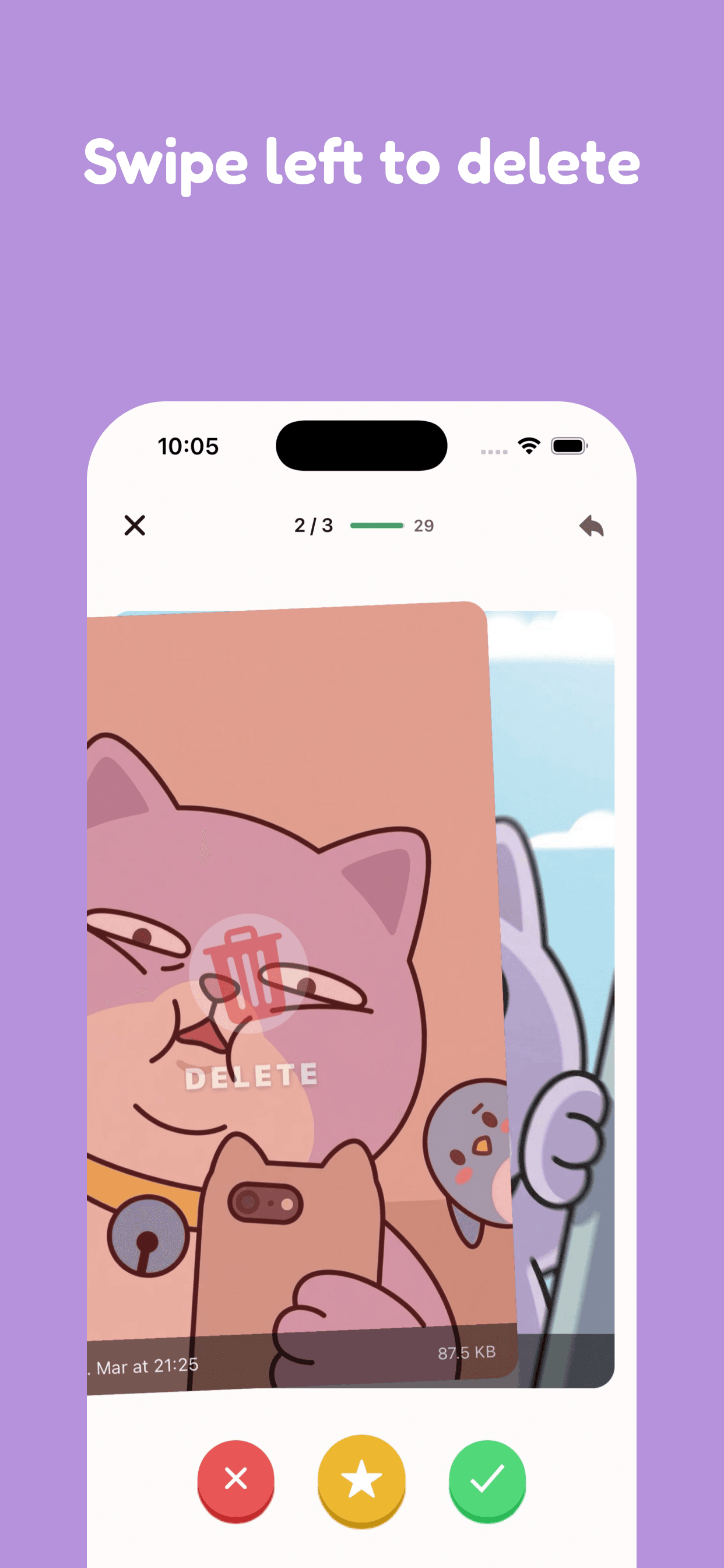
Screenshots pile up fast—error messages, memes, temporary codes, and one-time receipts. The safest way to delete iPhone screenshots is to review them in small batches, keep the ones you still need, and confirm deletions only after you check your choices.
Why screenshots fill iPhone storage
Many screenshots are useful for a minute and useless after that. Others are keepers: boarding passes, warranty receipts, setup steps, or notes you still reference.
Deleting every screenshot at once is risky. A short review session lets you free space while keeping the captures that still matter.
A safe screenshot-review workflow
- Open a focused set of screenshots instead of your whole camera roll.
- Keep receipts, tickets, and reference shots you still need.
- Mark temporary captures for deletion, then pause and review that batch.
- Check the Recently Deleted album before you permanently remove anything.
How Pikondo helps with screenshots
Pikondo turns cleanup into a swipe-by-swipe review. Swipe right to keep a photo and left to mark it for deletion. You can review the choices before you confirm them.
Pikondo helps you find screenshots, similar photos, and blurry shots. Your photo library stays on your device during the review process—nothing is uploaded.
Pair screenshots with a wider cleanup
After you clear screenshots, a short pass on duplicates and blurry shots can free more space. See our guides on freeing iPhone storage at /blog/free-up-iphone-storage and deleting duplicate photos at /blog/delete-duplicate-photos-iphone.
Keep sessions short. Five minutes after a busy week is often enough to clear temporary captures.
The key point
You do not need to wipe your library to delete iPhone screenshots. Review them, keep what you need, mark the rest, and confirm only after you are sure.
Frequently asked questions
- How do I delete iPhone screenshots without losing important ones?
- Review screenshots in small batches. Keep receipts, tickets, and reference shots. Mark temporary captures for deletion, then check your marked list and Recently Deleted before anything is removed permanently.
- Does Pikondo delete a screenshot as soon as I swipe left?
- No. Swipe right to keep a photo and left to mark it for deletion. You can review those choices before you confirm them.
- Can Pikondo find screenshots in my iPhone library?
- Yes. Pikondo helps you find screenshots, similar photos, and blurry shots so you can decide what to keep. Your photo library stays on your device during the review process.
- What is the safest way to clear screenshot clutter on iPhone?
- Work in short sessions. Keep the captures you still need, mark the rest, pause after a small batch, and only confirm deletions after you are sure you do not need to recover them.
